Changelog

Follow new updates and improvements to HelloShift.

πŸ›ŽοΈ Shuttles, Dinners and Itineraries, Right on the Reservation
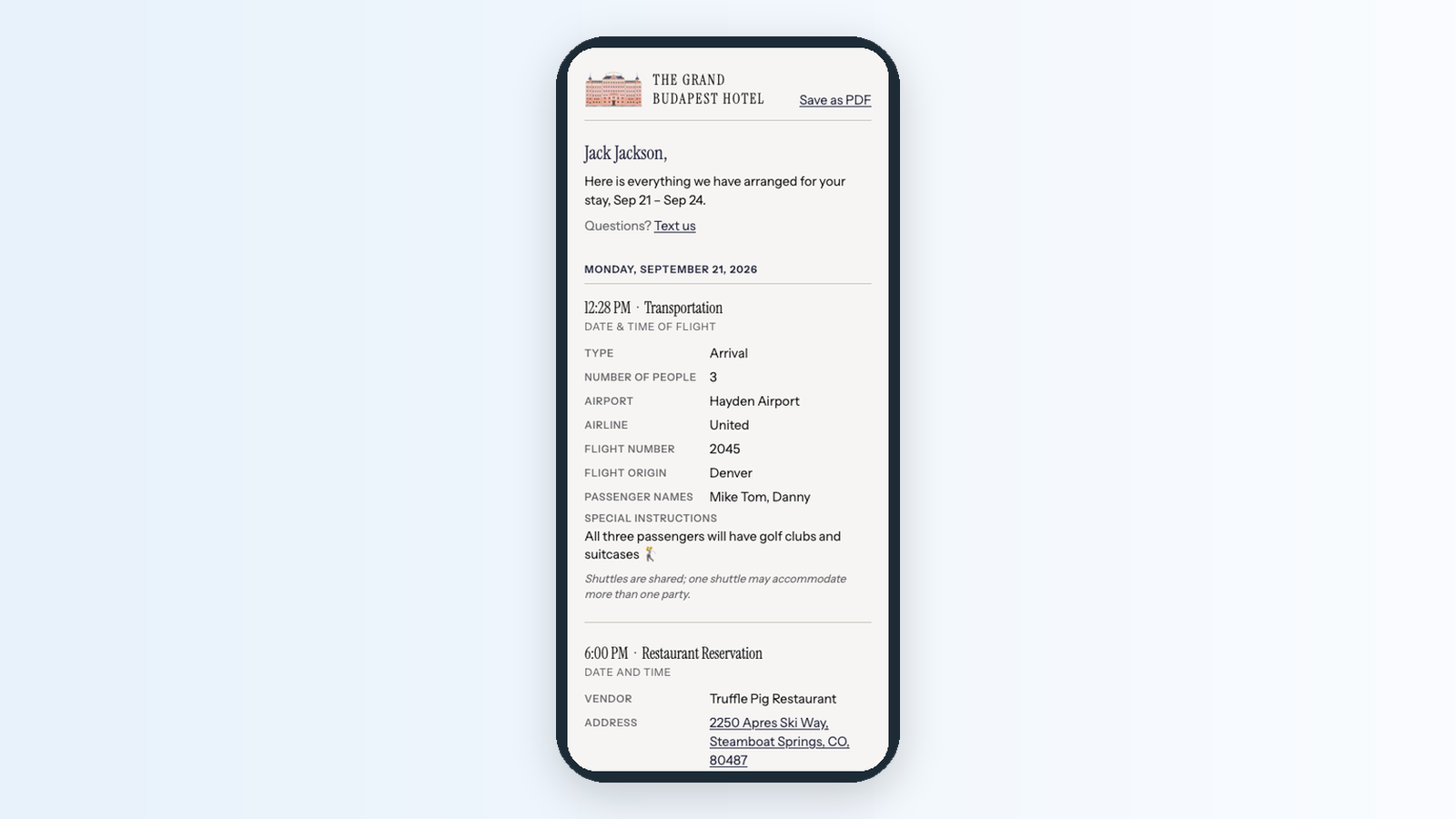
When a guest asks for an airport pickup and a dinner reservation, the details tend to end up on sticky notes, in a spreadsheet, and in a text thread with the driver. Guest Services keeps all of it on the reservation. Your team logs each service once, the people who fulfil it get a task, and the guest gets one itinerary link that stays current as plans are confirmed.

  • Every service in one place: Add shuttles, restaurant bookings, spa appointments and activities from the Services card on the reservation. Each one moves from Requested to Scheduled to Completed, and turns Updated when a confirmed booking changes, so your team knows what to recheck.

  • A live itinerary for the guest: Click Send itinerary and the guest gets a page in your brand, by text or email, listing every service by day. When you confirm or change something, they see it the next time they open the link.

  • The day's manifest, ready to download: Guest β€Ί Services lists every service across all reservations, with filters and a spreadsheet download your transport desk can work from.

  • Your catalog, your way: Admins add, rename and hide services, edit dropdown options and manage vendors under Admin > Settings > Guest services.

On other plans, Guest β€Ί Services shows a preview of what it does, with a button to upgrade.

πŸ‘‰ Learn more about Guest Services β†’

πŸ”§ Fixes and Improvements

  • Search that finds everything
    The search box at the top of every page now finds guests, reservations, rooms, tasks, conversations, wiki pages and more, with results appearing as you type. It forgives small typos in guest names, ignores accents, finds a guest from any part of their phone number, and now works in the HelloShift app on your phone too. Press / to jump straight to it, and click Search all time when you need something older than two years.
    πŸ‘‰ Searching in HelloShift β†’

  • Manual room condition changes can now reach your PMS
    If your PMS accepts room status updates, Room Status Push under Admin > Settings > Cleaning > General has a new option: After cleaning and manual changes. With it, a condition someone sets by hand on the room page, or with Set Room Condition on Cleaning Assignments, is sent to your PMS along with cleaning results. A short note under each condition dropdown tells your team whether the change will reach the PMS.
    πŸ‘‰ Room Status Sync settings β†’

πŸ“Έ See the Finished Room, Not Just the Checkmark

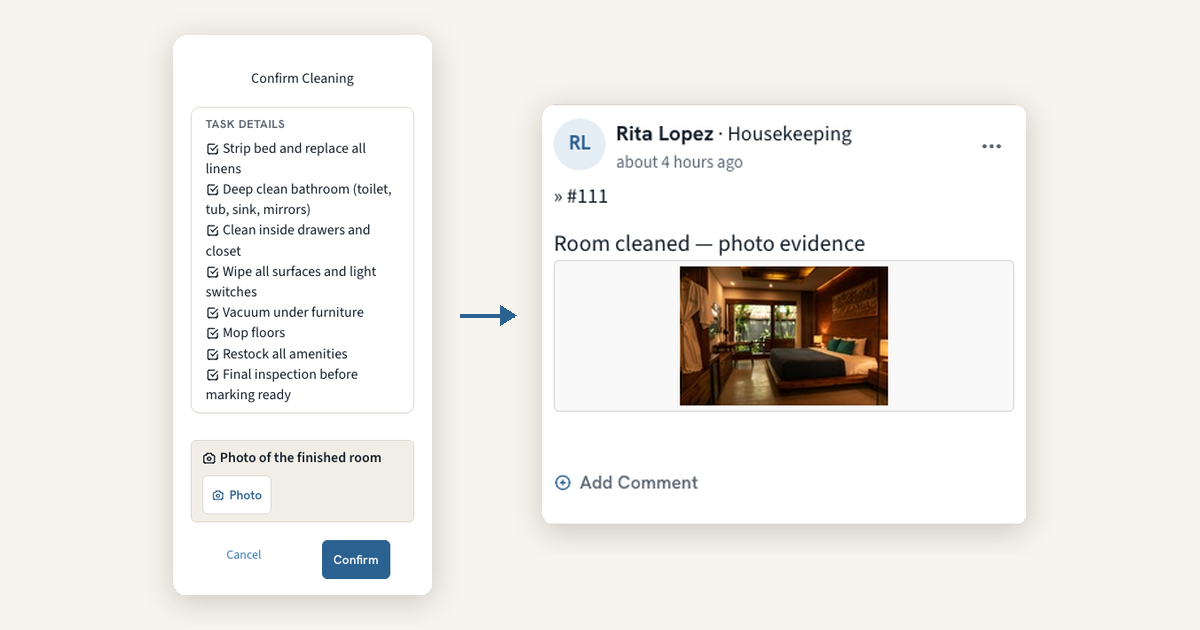
A room marked Complete tells you the cleaner tapped a button. It does not tell you what the room looked like when they walked out. Photo Evidence puts a camera at the two moments that matter: when a cleaner completes a room, and when an inspector fails an item. The photo lands in the room's Activity Feed where your team already looks, and managers can see at a glance which rooms have photo activity today.

  • Photo on Complete: Set it to Optional or Required under Admin > Settings > Cleaning > General and the Complete popup asks for a photo of the finished room. With Required, Confirm stays disabled until a photo is attached.

  • Failed items, with the picture: When an inspector marks an item Failed on the phone, the item offers Add a photo of the issue, and the photo shows on the inspection report right next to that item.

  • Built for the phone: Tapping Photo opens the rear camera directly, large photos are reduced before upload so they save quickly on hotel Wi-Fi, and Confirm waits for the upload to finish so a quick tap cannot lose the photo.

  • Photo activity at a glance: On Assignments, Overview, and Boards, a Photo activity badge marks rooms that had a photo posted today. Click it to open the room's feed.

πŸ‘‰ Learn more about photo evidence β†’

πŸ”§ Fixes and Improvements

  • Two-pass cleaning with a pre-cleaning phase
    If one team strips a checkout room and another does the full clean, you can now track the two passes as separate jobs, each with its own worker and timer. Add a name such as Strip/Prep under Pre-cleaning Actions in Admin > Settings > Cleaning > Custom Fields, and the cleaner can't start until the strip is done. Rooms move from Dirty to Pickup to Clean, and reports split pre-cleaning minutes from cleaning minutes, which helps if you bill owners by the hour.
    πŸ‘‰ Set up the pre-cleaning phase β†’

  • Check-in details now reach your PMS
    When a guest finishes online check-in, the reservation in your PMS now shows what they did: whether they signed the registration card, whether a card was provided, and a permanent link to the signed agreement. Cloudbeds also receives the guest's arrival time, WebRezPro gets the summary plus the signed agreement as a document, and Mews profiles pick up the email and phone the guest confirmed whenever Mews had none or only an OTA relay address. Your front desk sees all of it without opening HelloShift.
    πŸ‘‰ What gets sent to your PMS β†’

🌍 Speak Every Guest's Language, Automatically

Some of your guests would rather not do everything in English. They book anyway, get a confirmation text they half understand, and end up calling the front desk. Multilingual Guest Messaging closes that gap. HelloShift learns each guest's language from their messages, calls, and check-in, keeps every conversation readable for your team in English, and with one checkbox sends your automated messages in the guest's own language.

  • Read every message: When a guest writes in another language, the message translates automatically in the Inbox. Translations are clearly labeled, you can always tap "Show original", and once a message is translated everyone on your team sees it.

  • Guest pages follow the guest: Online check-in, the guidebook, shop, and tipping pages all show up in the guest's language, and guests can switch languages at the top of check-in or the guidebook. HelloShift remembers the choice on the guest record. It even shapes how the Voice AI assistant greets returning callers.

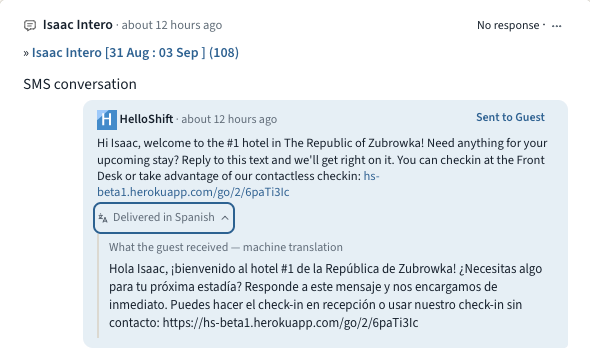
  • Automated messages, translated: Tick Translate automated messages into the guest's language under Admin > Settings > Guest > Messaging and every automated and triggered message goes out in the guest's language: pre-stay, in-stay, key codes, and event triggers. Your team still sees the English original with a "Delivered in Spanish" line underneath, and you can review and correct every translation on its snippet.

πŸ‘‰ Learn more about guest languages β†’

πŸ”§ Fixes and Improvements

  • AI Insights, now on for every property
    AI Insights is now enabled for every property, and the daily report email has been rebuilt to match. The subject line carries the day's headline, the body reads like the report itself with KPIs, sections, and the narrative, and it renders properly on a phone. On the reports page, the Copy for morning meeting button turns the day's numbers into a paste-ready briefing.
    πŸ‘‰ Email reports β†’

  • Tokeet (AdvanceCM) rentals, connected to your AI front desk
    Running rentals on Tokeet or AdvanceCM? Our new certified integration connects your account in minutes. Authorize once under ADMIN > Site Settings > Integrations and your rentals plus upcoming bookings import automatically and stay current. Guest names, phones, and emails arrive ready for messaging, and arrivals, departures, and guest status feed your AI front desk, guest messaging, and housekeeping checklists. The sync is one-way by design: bookings flow in, while cleaning status and payments stay in Tokeet.
    πŸ‘‰ Set up the Tokeet (AdvanceCM) integration β†’

  • Every automated message, backed up by email
    A confirmation text lands, the guest skims it, and three days later they're hunting for the check-in link. Tick Send an email copy of every automated message under Admin > Settings > Guest > Messaging and every automated or triggered SMS or WhatsApp message is also emailed at the same moment, whenever the guest has an email on file. Messages that already went out by email are never sent twice, and every copy shows in the guest's conversation.
    πŸ‘‰ Learn more about the email copy β†’

  • Undeliverable texts move to the next channel automatically
    Sometimes a text just can't be delivered: a wrong digit, a landline, a WhatsApp number that was never registered. When that happens, HelloShift now re-sends the message on the next channel in your Order of Channels instead of leaving the guest unreached. Both the failed attempt and the re-send show in the guest's conversation.
    πŸ‘‰ Order of Channels β†’

Earlier updates